
 List Manager example
Project Tracker
September 21, 2026

Live result on the frontend
The Project Tracker list shows twenty client projects in a table that a project office could use as a live status board. Owners, clients, dates, budgets and progress sit in one row each, and a click on a row opens the full project notes.
What it shows
The visitor gets a quick overview and can narrow it down in seconds:
- Table layout — eight columns with sorting on every header; on phones List Manager stacks each row and the CSS turns it into a compact card.
- Progress bars — the Progress field type draws a bar for the 0–100 value; the CSS adds the percentage label and turns finished projects green.
- Budget total — the Budget column has the Total option enabled, which adds a totals row under the table.
- Search and filters — a search box (project, client, owner, notes) plus drop-down filters for status, owner and priority.
- Status and priority styling — a few lines in the list’s Javascript wrap the cell text in a <span> with a data attribute, so the CSS can colour each value.
- Detail pop-up — clicking a row opens a summary with status, progress, dates, budget and the notes column, which is hidden in the table itself.
How it’s built
The list uses the standard Table layout. Column widths are set in the CSS screen with td.<column> and th[data-id=<column>] selectors (List Manager sets equal widths inline, so the CSS overrides them with flex and !important). The Notes column is loaded but hidden with CSS, so it is still available to the detail pop-up and to search.
Status and priority are Option list fields; the small script in the Javascript screen adds a data-v attribute to those cells (and re-applies it after every filter, sort or page change). Everything else is plain CSS. The Progress field renders Bootstrap’s progress bar; the example restyles it and adds the number.
The database is the table lm_projects with 20 sample rows (see the SQL download); the list configuration is a single XML file created with the Export Configuration button.
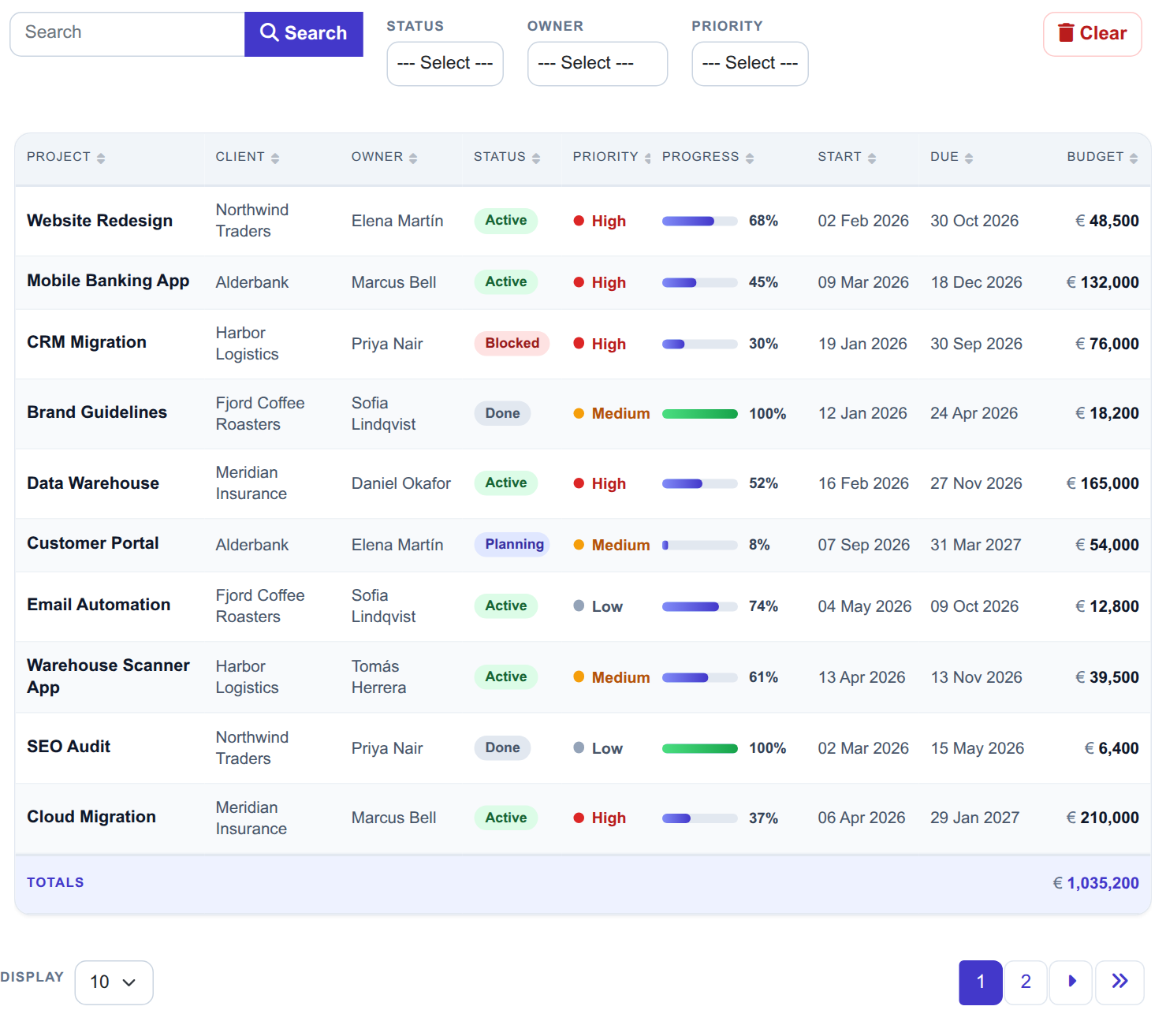
The whole list on the frontend: toolbar with search and three filters, the project table with progress bars and the budget total.
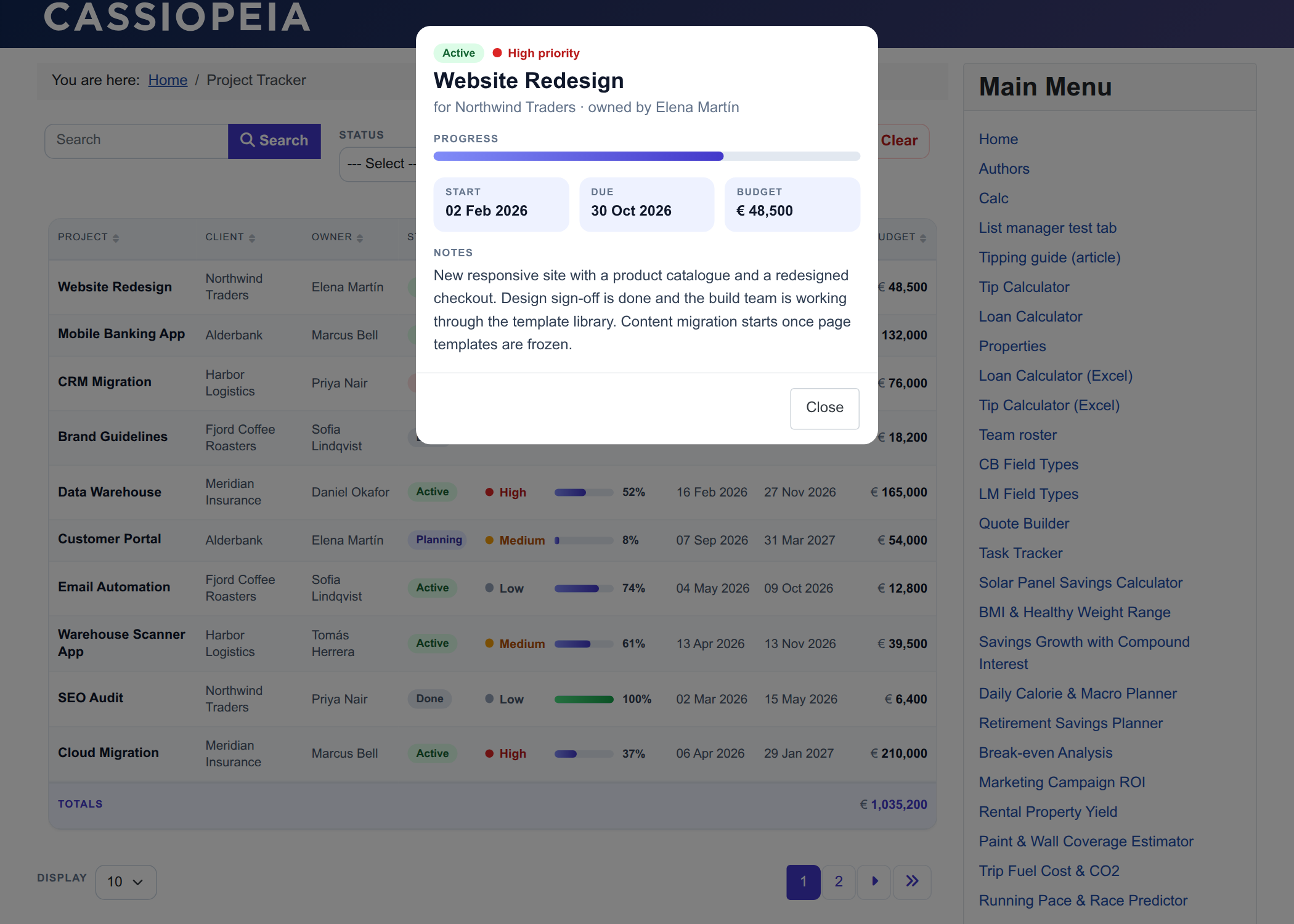
The detail pop-up that opens when a row is clicked, including the notes column that the table hides.
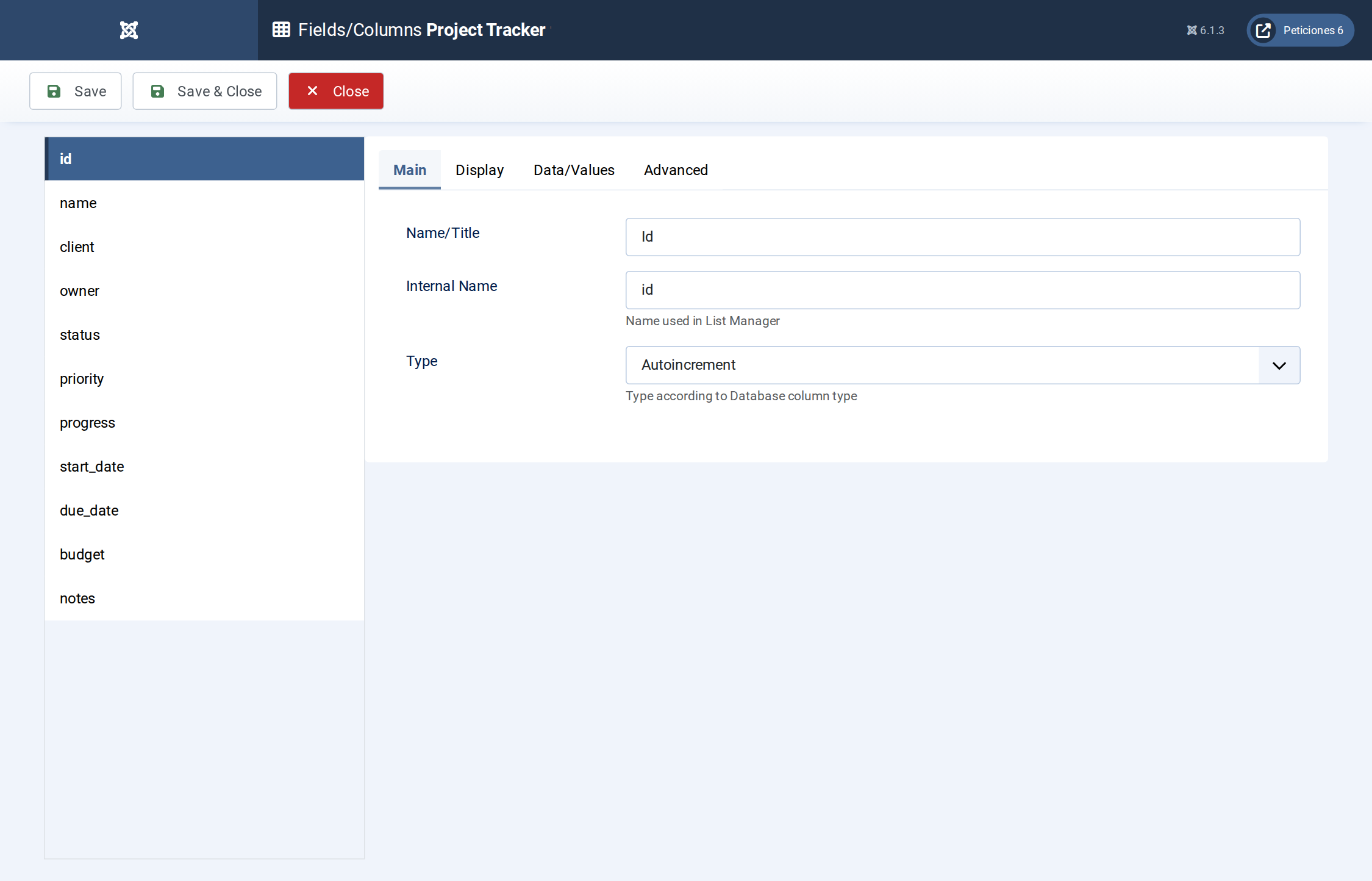
Fields/Columns: the project columns with their types (text, option lists, Progress, dates, number with total, textarea).
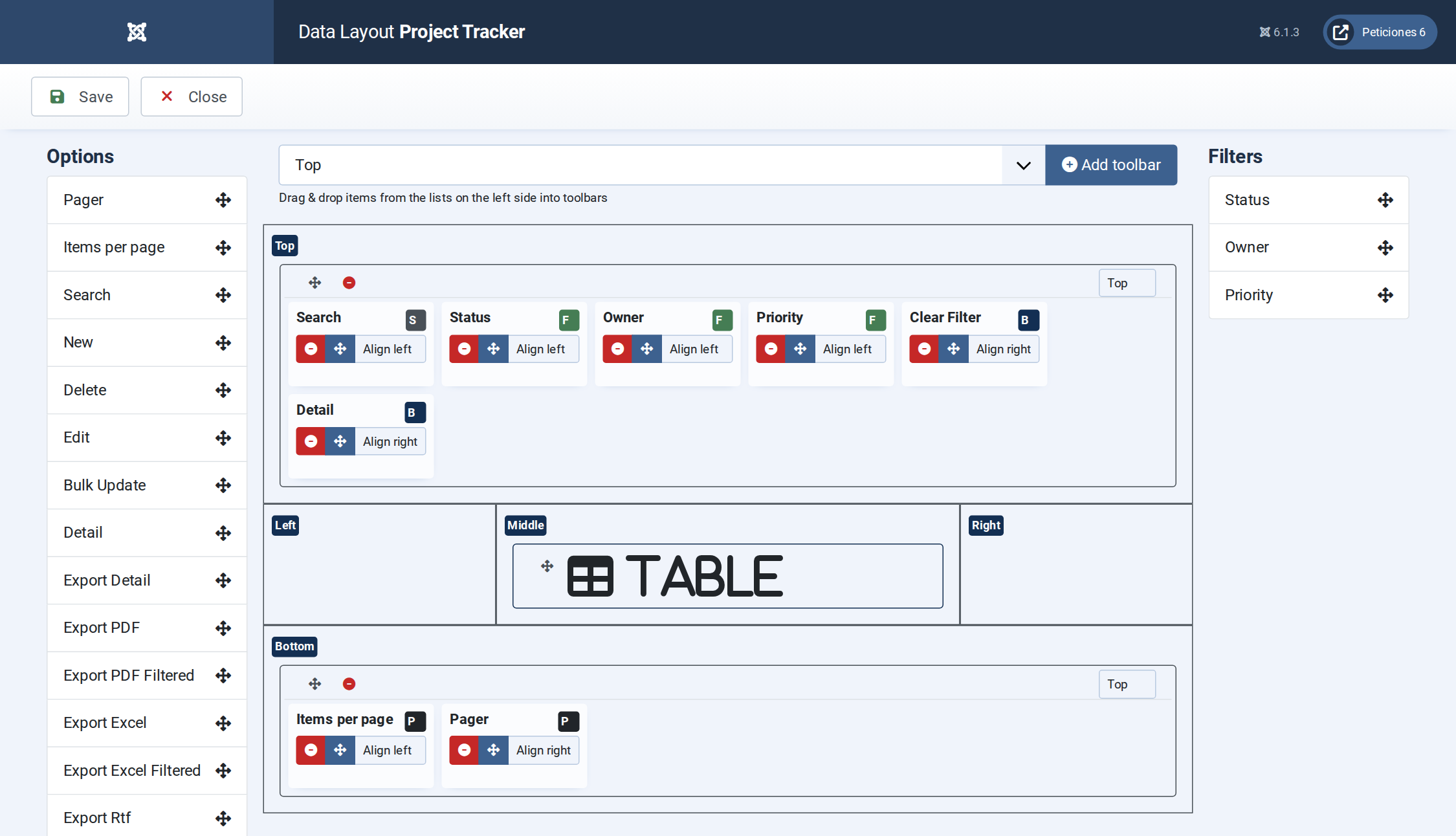
Display › Data Layout: table layout, date and number formats and the pagination defaults.
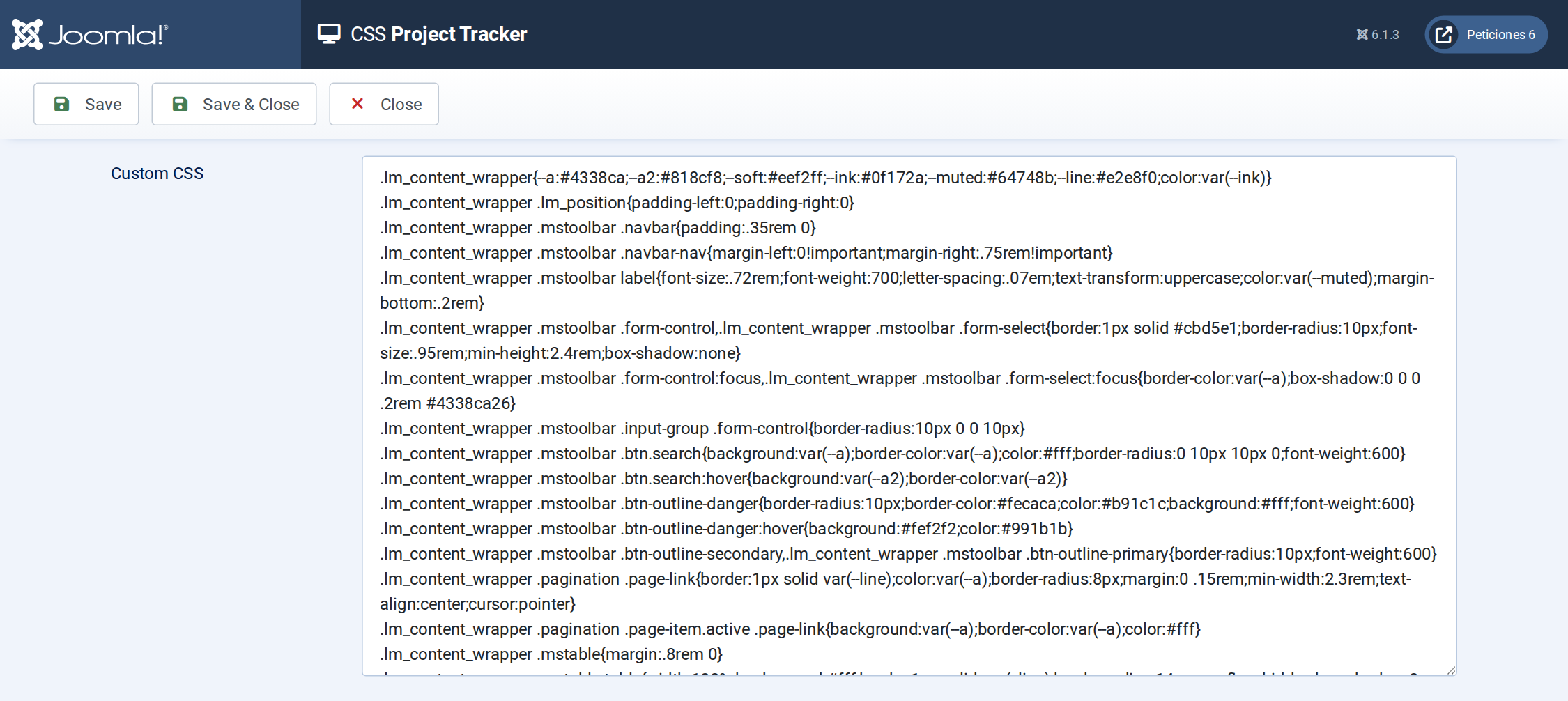
The CSS screen holds the column widths, the progress bar, the totals row and the phone layout.
Want this exact example on your own site?
- Create the table. Run the SQL file in phpMyAdmin (or the mysql client) on your Joomla database. It creates the sample table with its data (the table name has no Joomla prefix and is replaced if it already exists).
- Import the configuration. In your Joomla admin open Components › List Manager › Import and upload the configuration file — it is the same file the component's own Export Configuration button produces.
- Publish it. Create a menu item of type List Manager and select the imported list.