
 CalcBuilder example
Paint & Wall Coverage Estimator
September 21, 2026

Live result on the frontend
The Paint & Wall Coverage Estimator turns a room’s dimensions into a shopping list: how much paint, which tins and what it costs. It subtracts doors and windows, optionally adds the ceiling and uses the coverage and price of the finish you pick.
What it calculates
A visitor enters length, width and height, the number of doors and windows, the number of coats, a finish and whether the ceiling is painted. The calculator returns:
- Paintable area — wall area (perimeter times height) minus doors and windows, plus the ceiling when it is included.
- Litres needed — paintable area times the coats, divided by the finish’s coverage in m² per litre, plus 10% for waste.
- Tin combination — the fewest 5 L and 2.5 L tins that cover the litres, choosing the smaller total volume when two combinations use the same number of tins.
- Total cost — litres actually bought (whole tins) times the finish’s price per litre, with a per-tin shopping list and the paint left over.
- Wall versus ceiling — a two-part bar that shows how the paintable area splits between walls and ceiling.
How it’s built
Five Number fields take the room and the coats, a List field offers four finishes whose labels show the price per litre and the coverage, and a Yes/No field switches the ceiling on or off. The PHP Code looks up the selected finish by its option value.
The tin optimiser is a small loop over the number of 5 L tins that picks the fewest tins and, on a tie, the least paint. The table rows and the area bar are built as HTML in PHP and printed by the Exit Layout with ##tin_rows## and ##area_bar##.
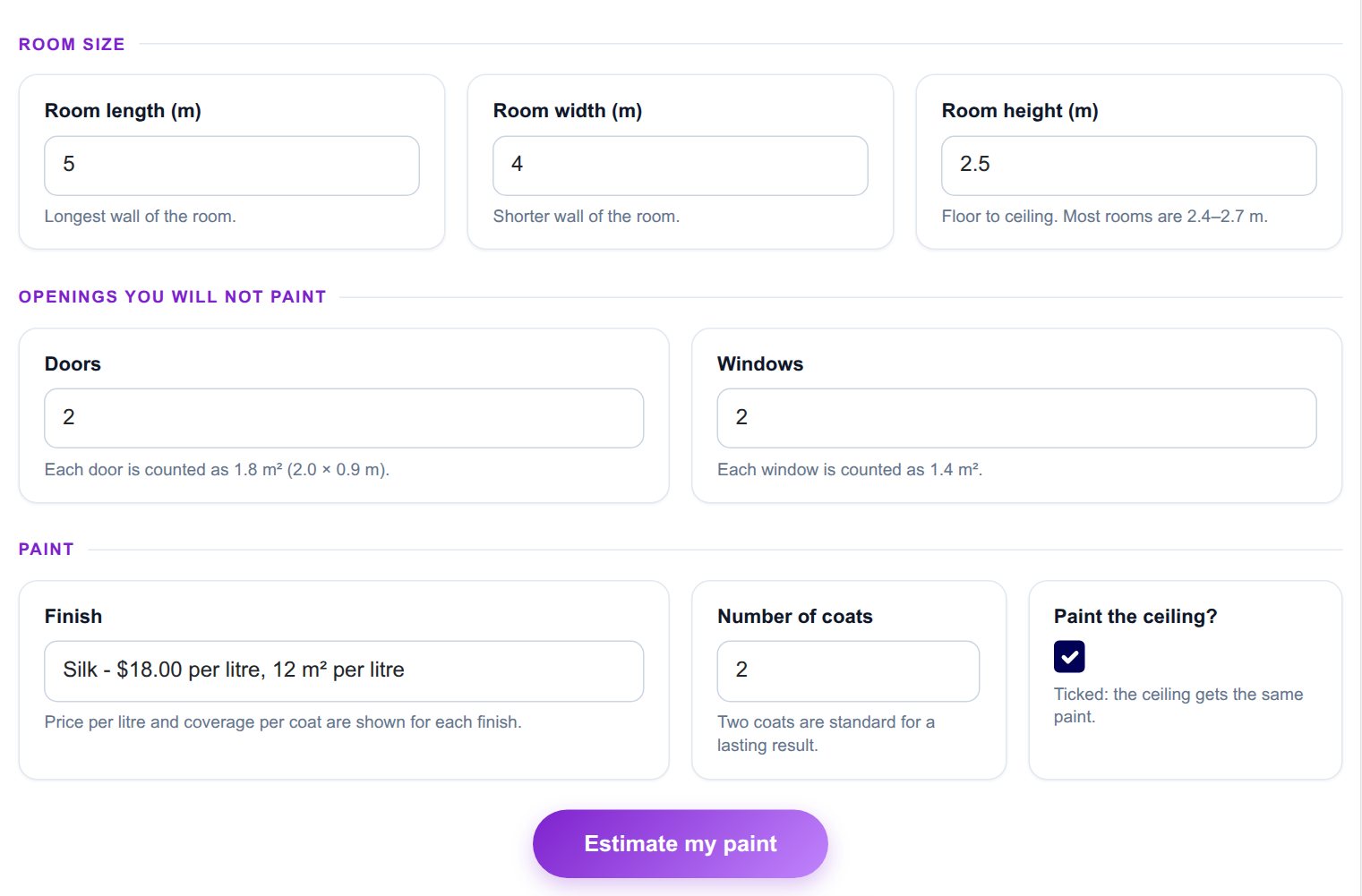
The input form as your visitors see it, styled with the Form Layout.
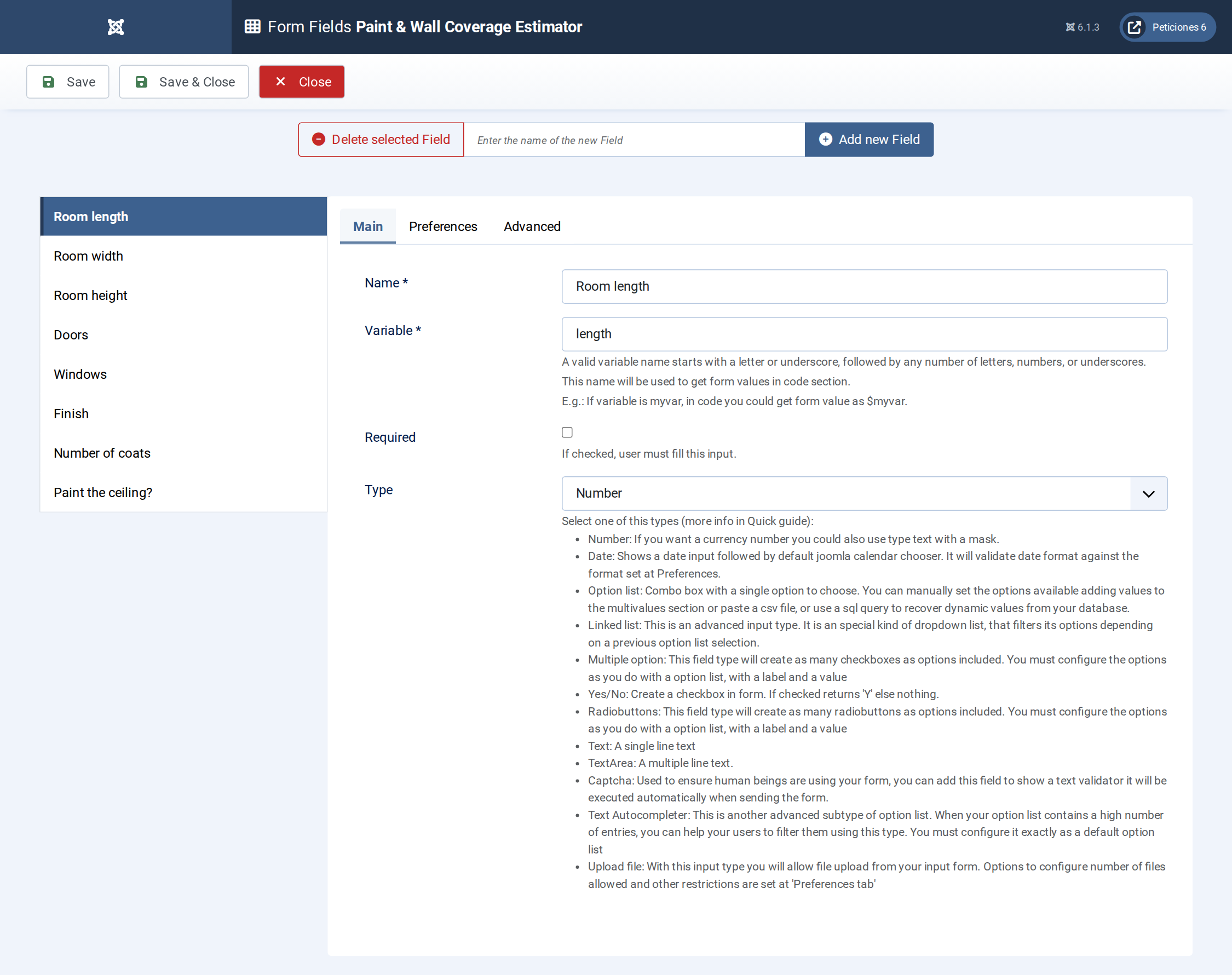
Eight fields: five Number, one List with the finish data in every label, one Number for coats and one Yes/No for the ceiling.
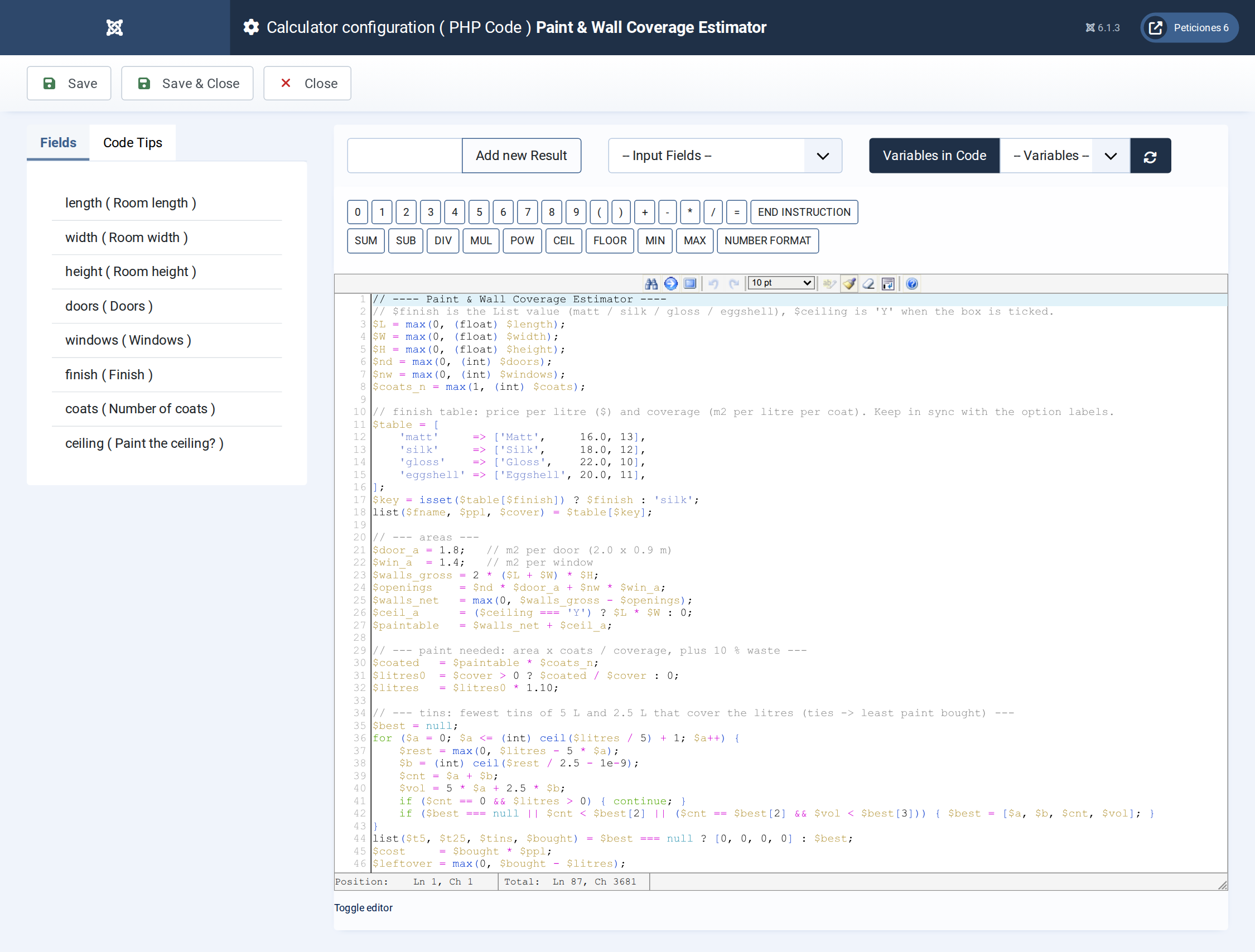
The PHP Code: areas, litres with 10% waste, the tin optimiser and the markup for the table and bar.
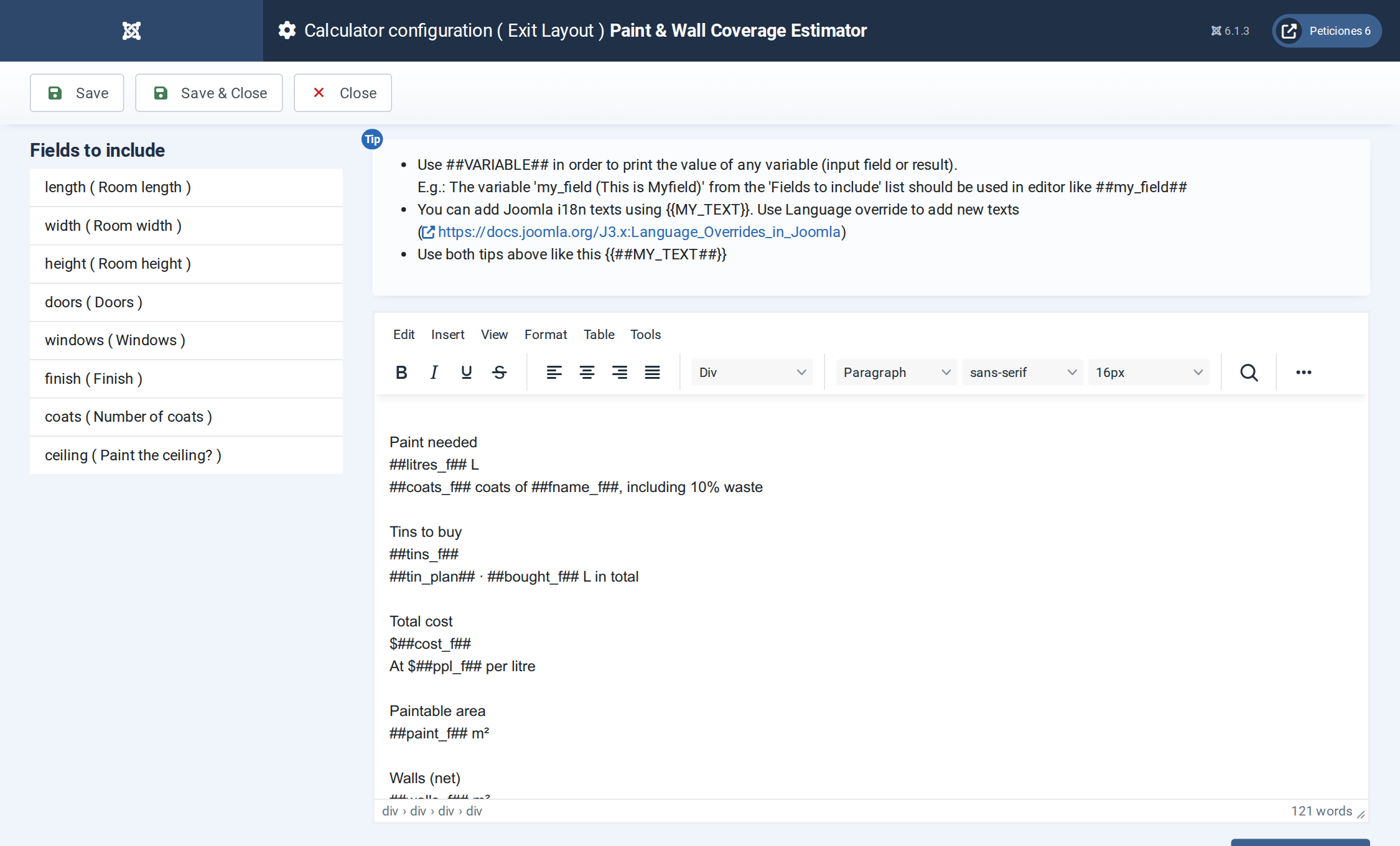
The Exit Layout: three hero cards, six metric cards, the wall/ceiling bar and the shopping-list table.
Want this exact example on your own site?
Download the file above, then in your Joomla admin open Components › CalcBuilder › Import and upload it — it's the same file you'd get from that component's own Export button, so it drops in as a ready-to-use, fully working copy in one step.