
 List Manager example
Product Catalog
September 21, 2026

Live result on the frontend
The Product Catalog list turns a product table into a small shop window. Every row becomes a card with a category tile, a price block, a discount ribbon and a stock badge; a click opens the product details in a pop-up.
What it shows
The visitor can narrow down the range in a few clicks:
- Card layout — three columns on desktop, two on tablets and one on phones.
- Filters — search over name, SKU, category and description, a category drop-down, a stock drop-down and a price range (from / to).
- Price block and ribbon — the old price is struck through and a red corner ribbon shows the discount; both disappear by themselves when the product has no offer.
- Stock badge and stars — the stock level becomes a badge (in stock, a few left, sold out) and the numeric rating is drawn as partly filled stars, using only CSS.
- Sorting — a small script adds a “Sort by” selector (price, rating, name) because card lists have no sortable column headers.
How it’s built
The list uses the Card layout. The category tile colour and icon come from a CSS class taken from the option-list label (c-##category##), the stock badge from s-##stock##. The ribbon is a text column (discount_label) that is empty or like -20%; an empty ribbon is hidden with :empty.
The Price filter is a Range filter (type 3): two boxes, from and to, applied as BETWEEN on the numeric column. The sort selector is a few lines in the list’s Javascript screen.
The database is the table lm_products with 24 sample rows (see the SQL download); the list configuration is a single XML file created with the Export Configuration button.
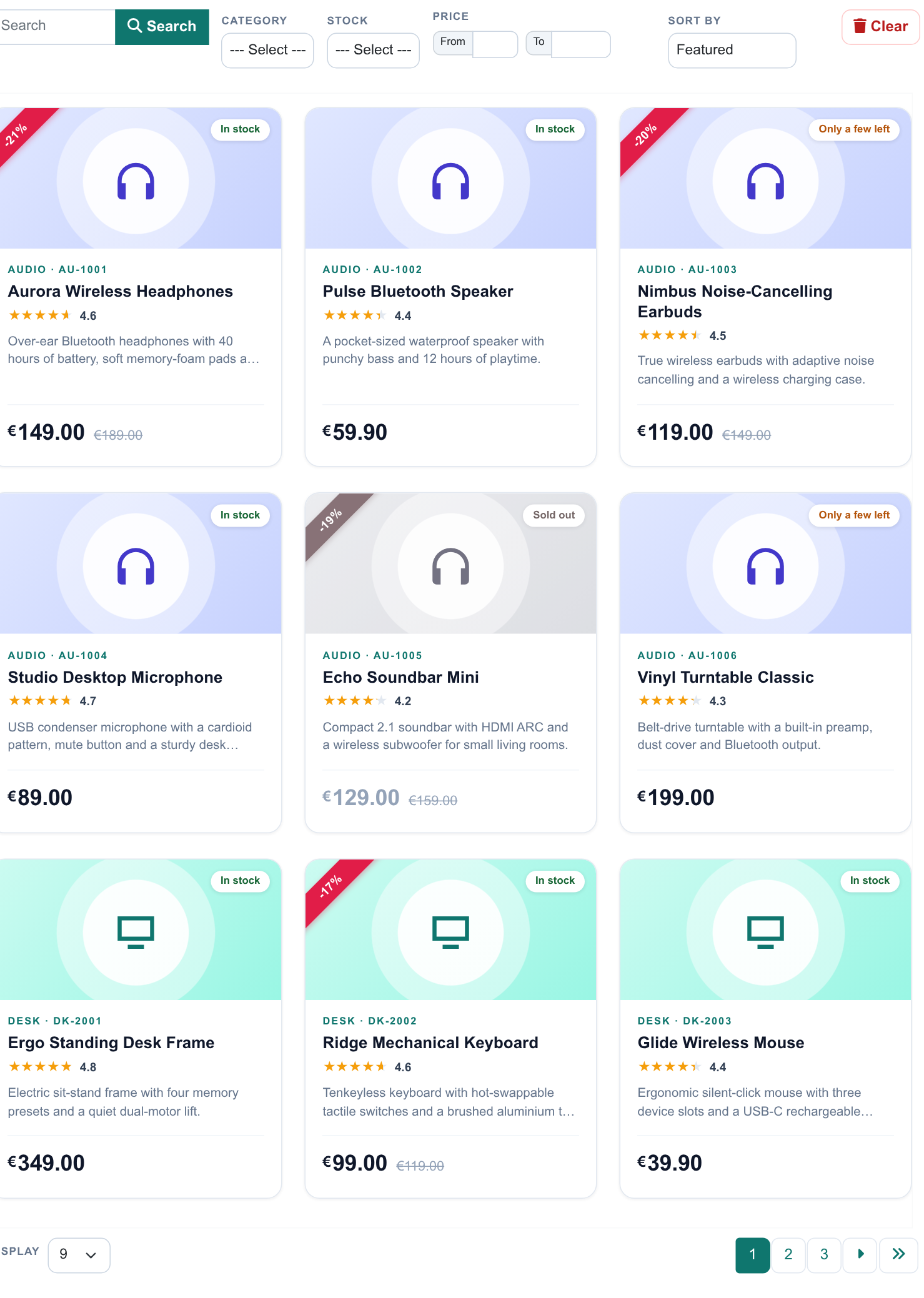
The whole list on the frontend: toolbar with search, filters, price range and sorting, product cards and pagination.
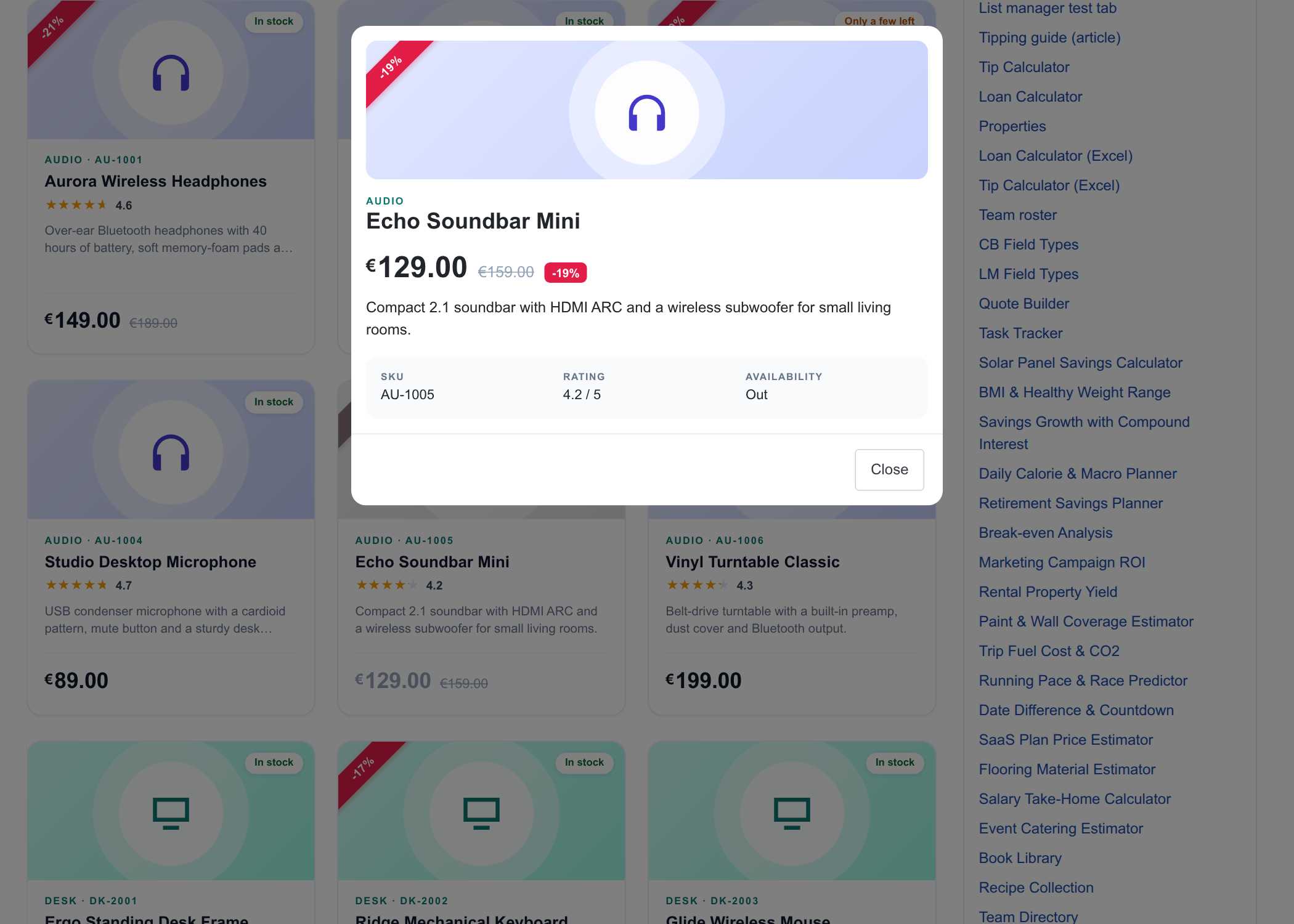
The detail pop-up with the price, description and specifications.
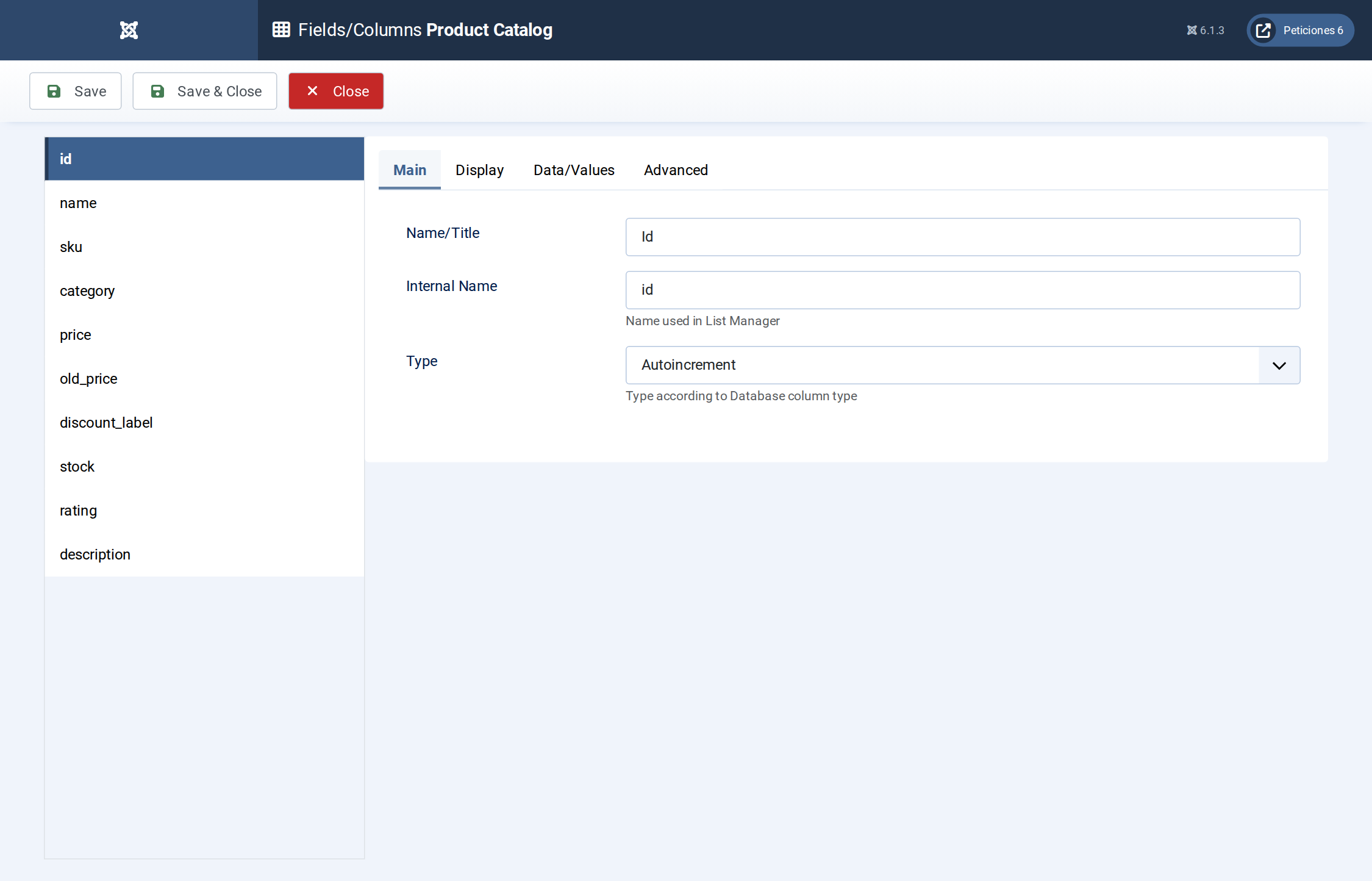
Fields/Columns: ten columns with their types (text, option lists, decimal numbers, textarea).
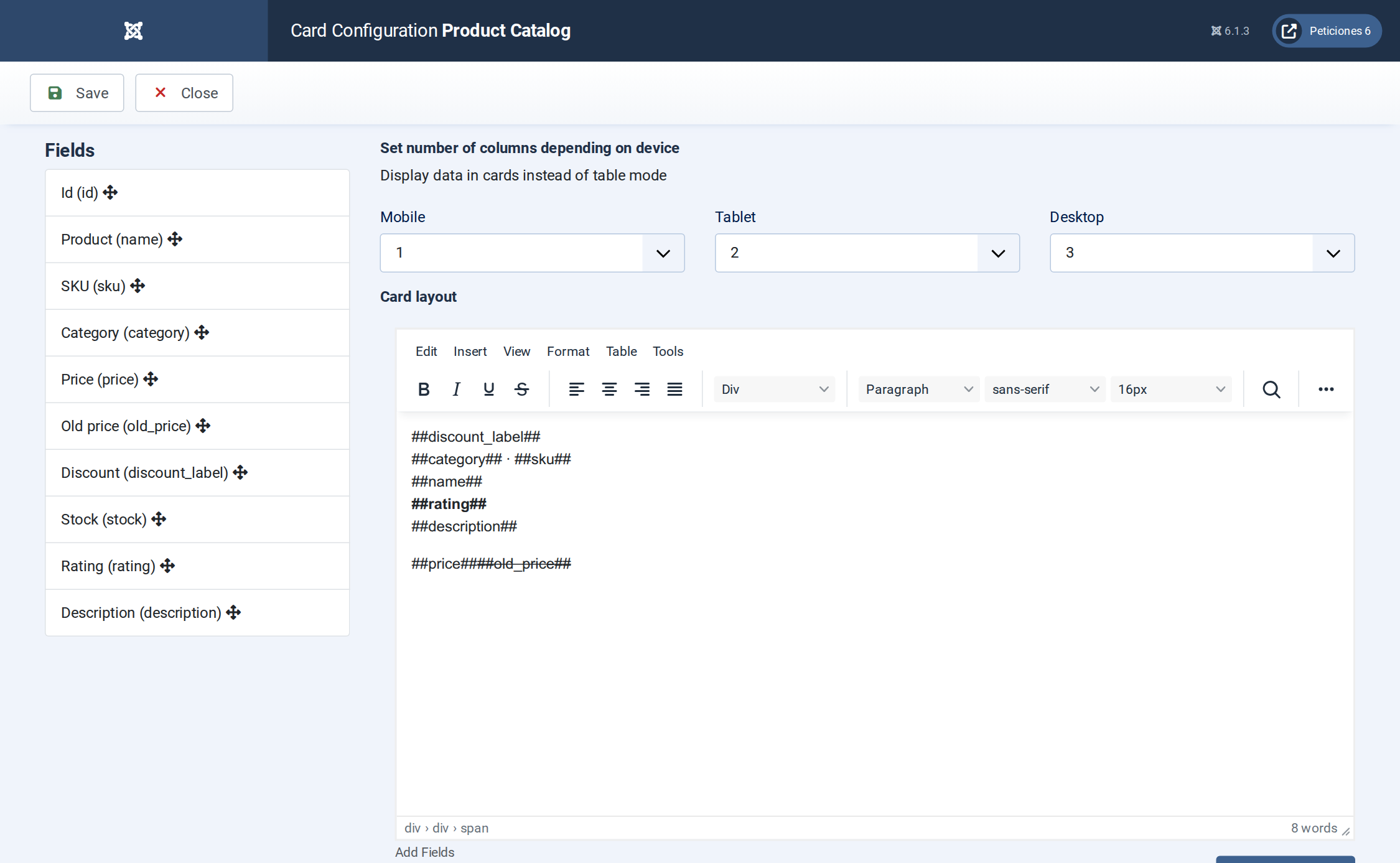
Display › Card: number of columns per device and the card HTML with its placeholders.
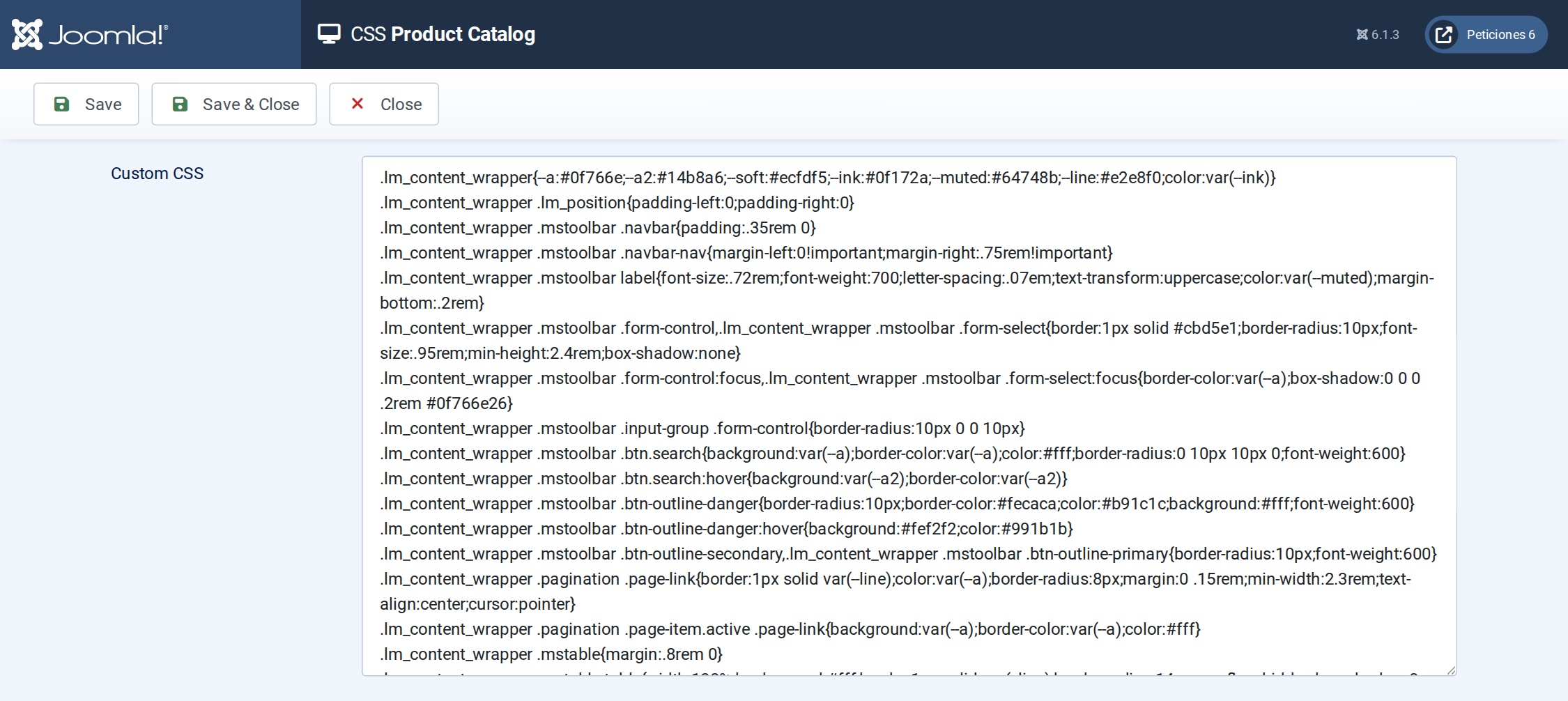
The CSS screen holds the toolbar, card design, ribbon, badges and category tiles.
Want this exact example on your own site?
- Create the table. Run the SQL file in phpMyAdmin (or the mysql client) on your Joomla database. It creates the sample table with its data (the table name has no Joomla prefix and is replaced if it already exists).
- Import the configuration. In your Joomla admin open Components › List Manager › Import and upload the configuration file — it is the same file the component's own Export Configuration button produces.
- Publish it. Create a menu item of type List Manager and select the imported list.