
 List Manager example
Job Board
September 21, 2026

Live result on the frontend
The Job Board list turns a MySQL table of job offers into a browsable board. Every row becomes a card with a company monogram, contract and work-mode chips, the location and the salary, and a click opens the full offer in a pop-up.
What it shows
A candidate can narrow the offers in a few clicks:
- Card layout — three columns on desktop, two on tablets and one on phones, each card built from the row’s fields.
- Filters — contract type as a group of checkboxes, plus drop-down filters for work mode and location, and a search box over title, company, city and skills.
- Chips and monograms — the contract and work-mode chips take their colour from the option-list label; the company monogram colour is stored in the table.
- Detail pop-up — clicking a card opens the offer with salary, contract, work mode, posting date, description and the skills as tags.
How it’s built
The list uses the Card layout: the card HTML is written once with ##field## placeholders (title, company, salary, city...) and List Manager repeats it for every row. The salary is stored twice: as numbers (salary_min, salary_max) for sorting or future range filters, and as a ready-made text column salary_label (€45k-60k) that the card shows.
The posting date is a real Date column with fixed dates, formatted by the list’s date format, so the board never shows a stale “3 days ago”. The skills are a comma-separated text column that a few lines of the list’s Javascript screen turn into tags inside the pop-up.
The database is the table lm_jobs with 24 sample rows (see the SQL download); the list configuration is a single XML file created with the Export Configuration button.

The whole board on the frontend: toolbar with search and filters, card grid and pagination.
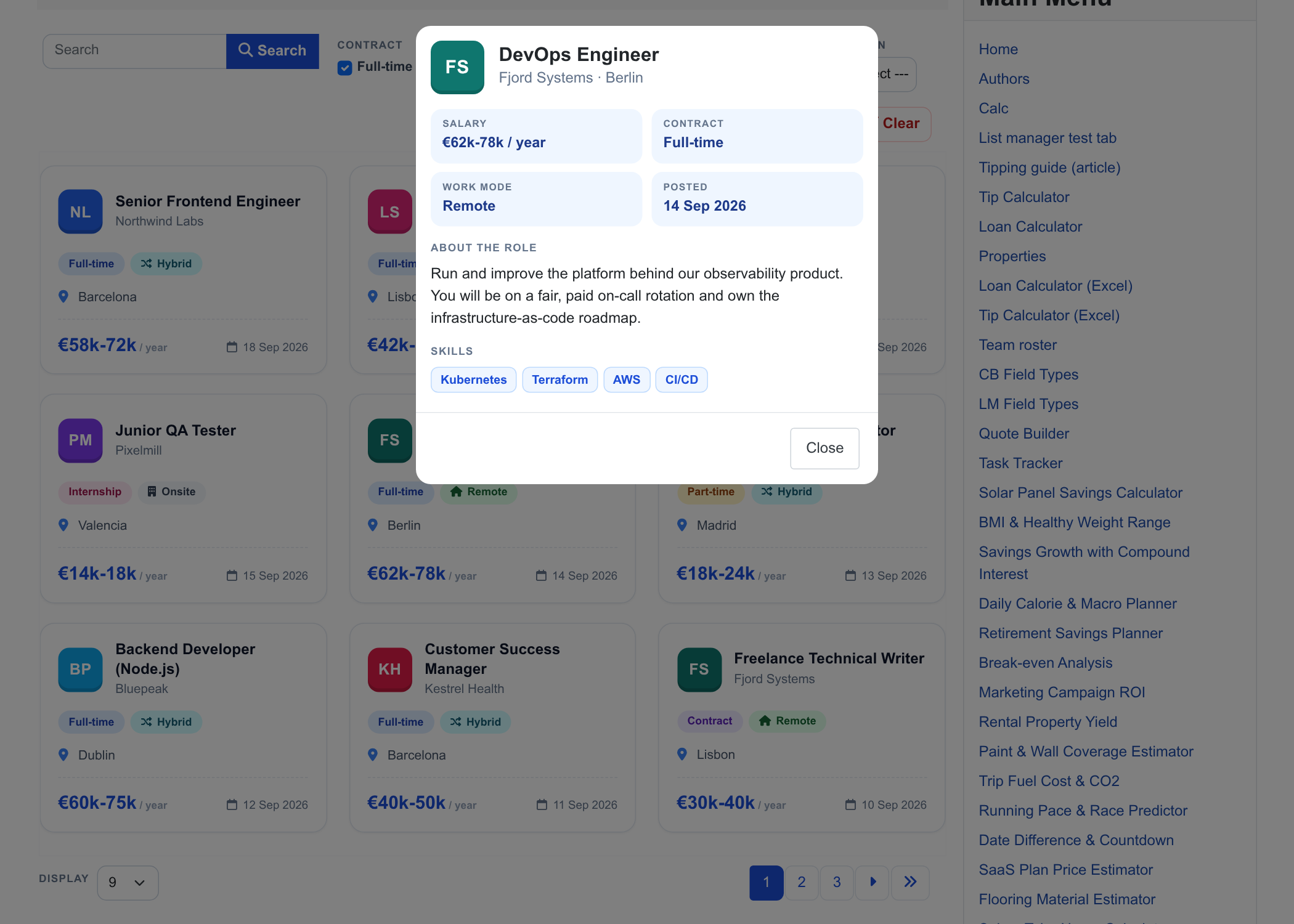
The detail pop-up that opens when a card is clicked.
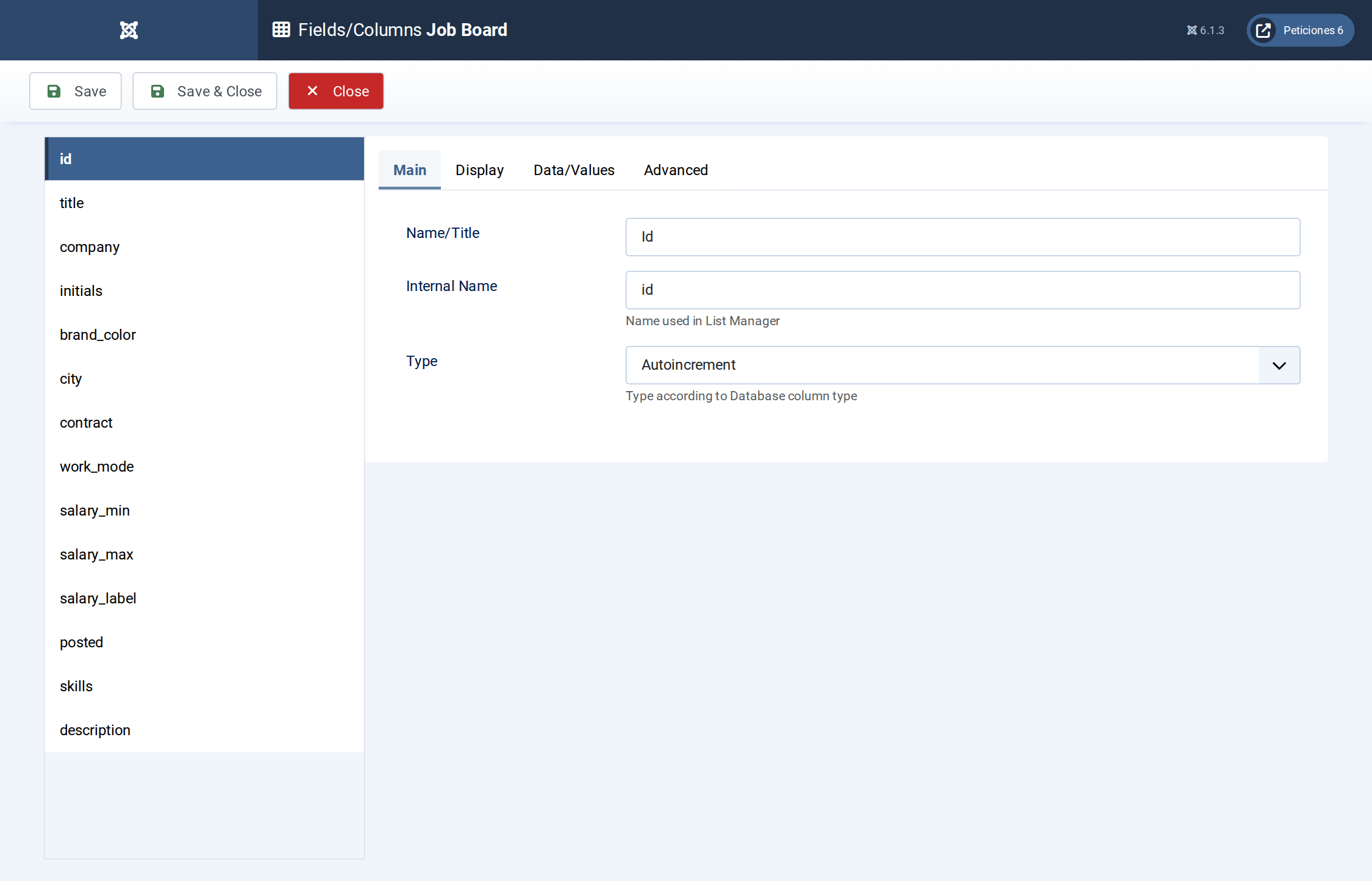
Fields/Columns: the columns with their types (text, option lists, numbers, date, textarea).
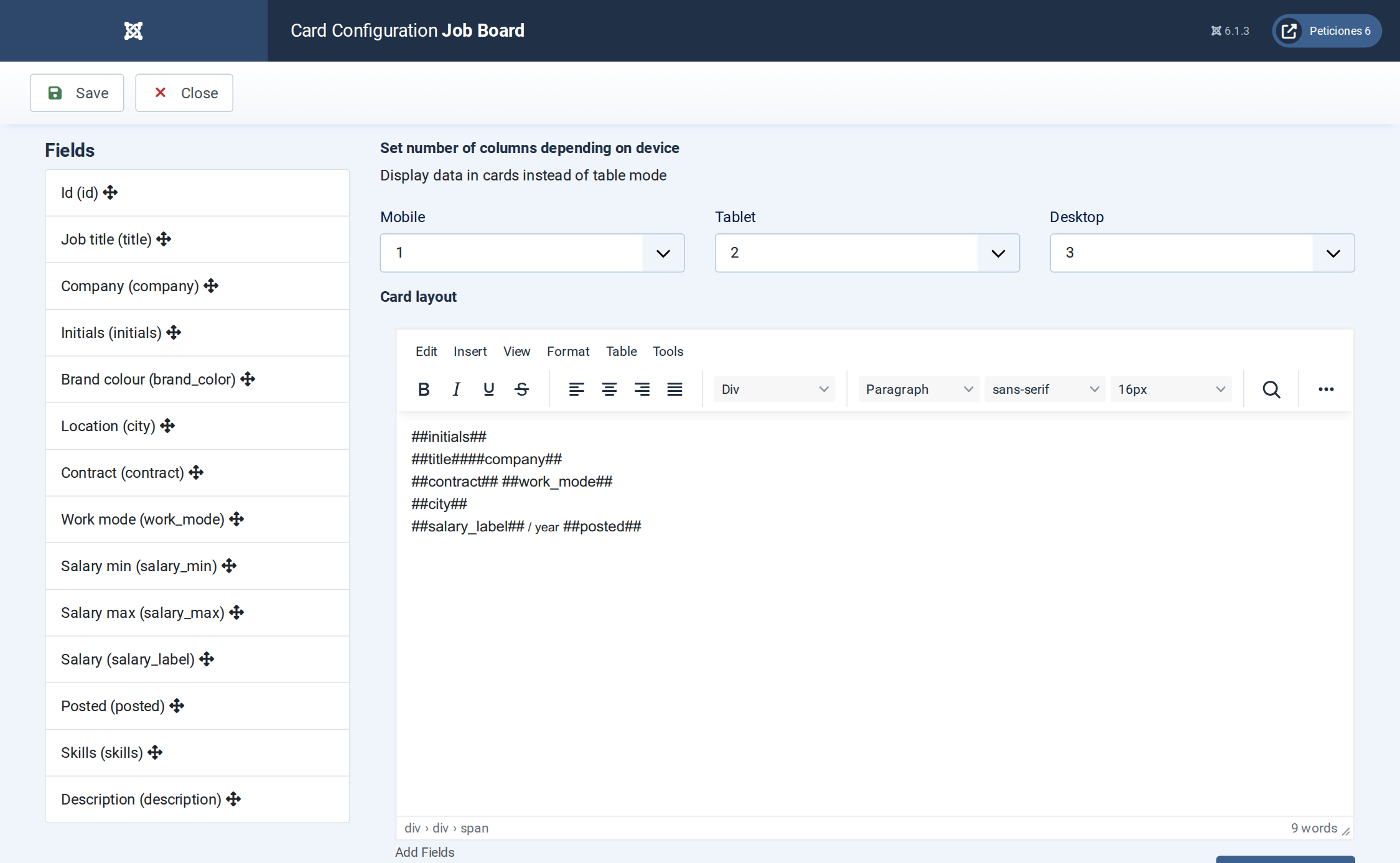
Display › Card: number of columns per device and the card HTML with its placeholders.
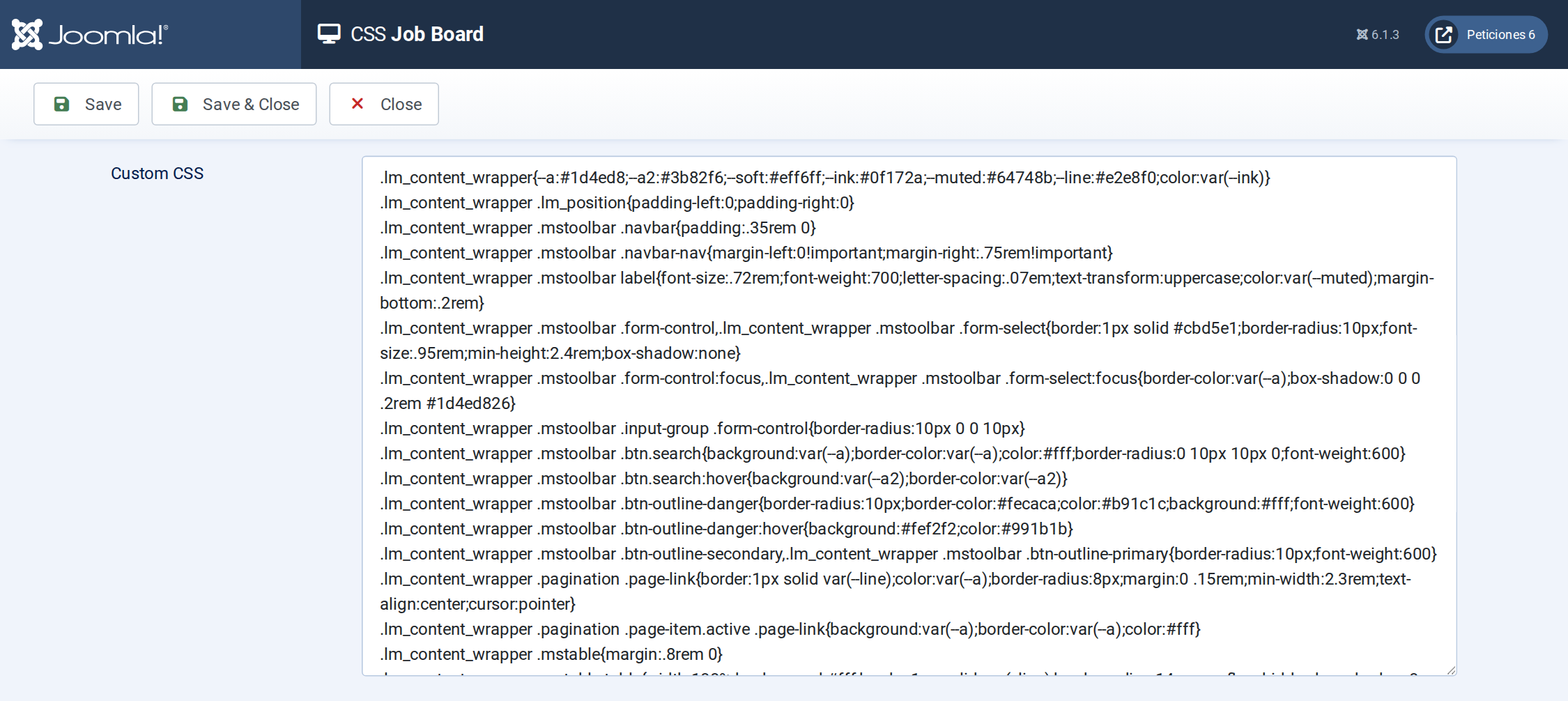
The CSS screen holds the whole design of the toolbar, pagination, cards and detail pop-up.
Want this exact example on your own site?
- Create the table. Run the SQL file in phpMyAdmin (or the mysql client) on your Joomla database. It creates the sample table with its data (the table name has no Joomla prefix and is replaced if it already exists).
- Import the configuration. In your Joomla admin open Components › List Manager › Import and upload the configuration file — it is the same file the component's own Export Configuration button produces.
- Publish it. Create a menu item of type List Manager and select the imported list.