
 List Manager example
Invoice Register
September 21, 2026

Live result on the frontend
The Invoice Register list keeps thirty 2026 invoices in one sortable table, newest first. It is a small accounts-receivable view: who was billed, how much, and what is still outstanding.
What it shows
The visitor can look up invoices and export exactly what is on screen:
- Default order — the list opens with the newest invoice first; the default order (issue date, descending) is set on the Display › Data Layout screen.
- Totals — net, VAT and total have the Total option, so the table ends with a sums row (it follows the current filters).
- Filters — a status drop-down, a customer text filter that narrows the list while you type, and an Issued between date-range filter with From and To pickers.
- Export buttons — Excel and PDF, each in two flavours: the whole list and the filtered version that only contains the rows matching the current search and filters.
- Status badges — paid, pending and overdue are coloured with a few lines of Javascript that add a data attribute to the cell.
- Invoice pop-up — clicking a row opens the invoice as a small document: number, customer, dates, net / VAT / total lines and the notes.
How it’s built
The list uses the Table layout. Amounts are stored as decimals, the currency sign is added by CSS, and the column widths are set with td.<column> and th[data-id=<column>] rules in the CSS screen. The Notes column is loaded but hidden in the table, so it is available for search and for the pop-up.
The four export buttons are toolbar elements (export.excel, export.excel.filtered, export.pdf, export.pdf.filtered) placed next to the pagination. The date-range filter is a filter of type Range on the issue-date column. On phones the table rows become compact cards.
The database is the table lm_invoices with 30 sample rows (see the SQL download); the list configuration is a single XML file created with the Export Configuration button.
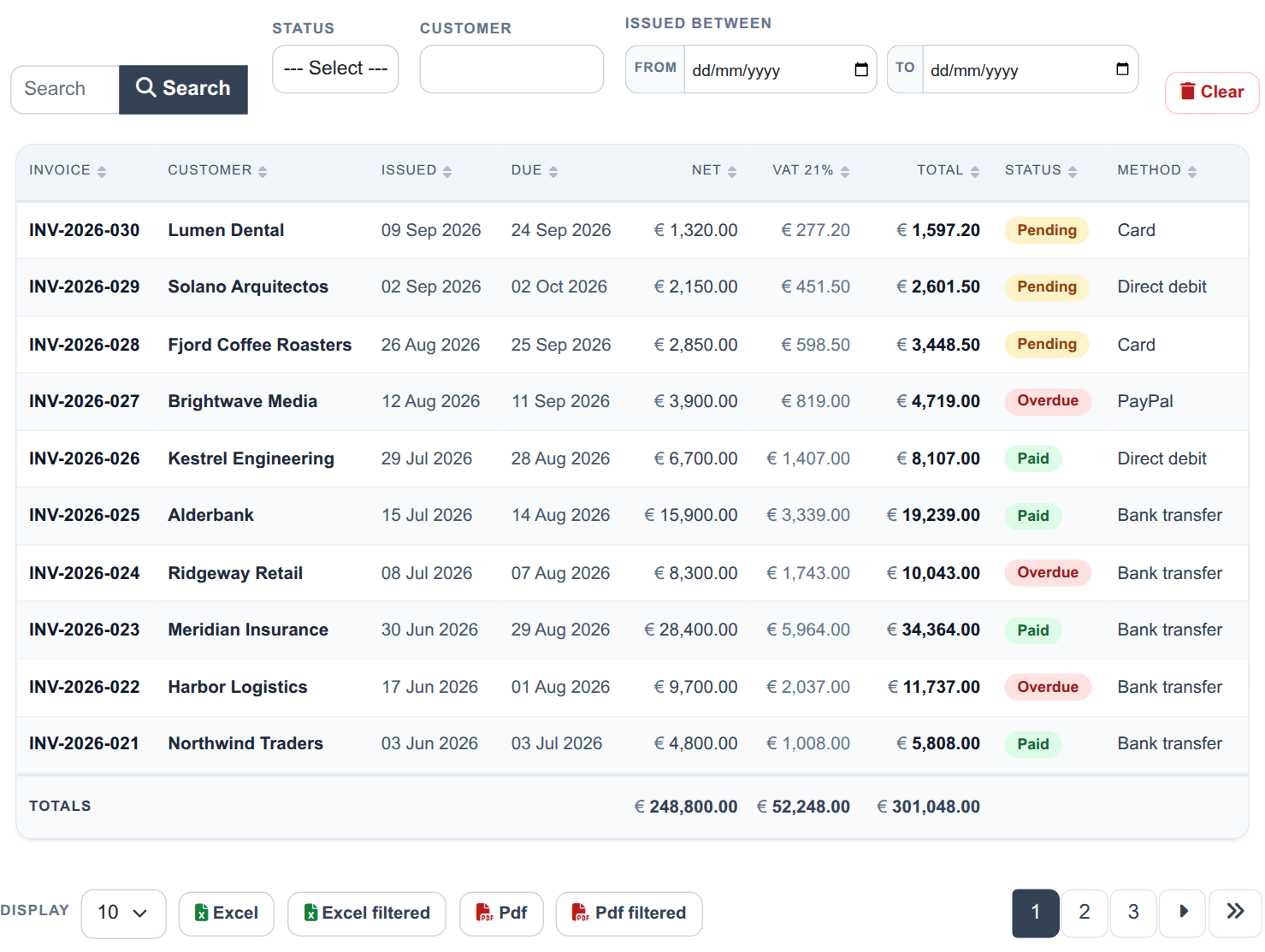
The whole list on the frontend: search, status, customer and date-range filters, the invoice table with its totals row, and the export buttons.
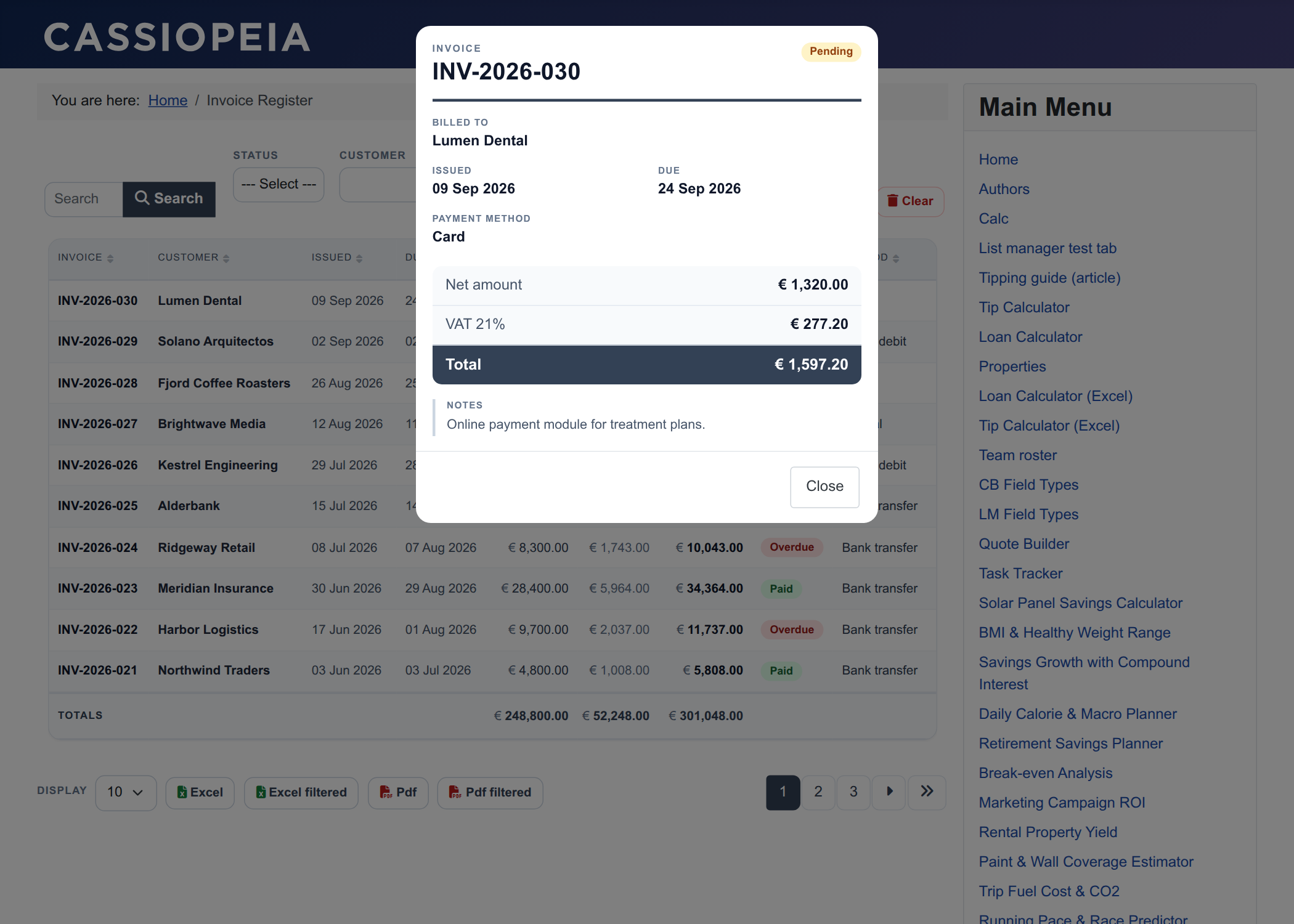
The detail pop-up laid out like an invoice summary.
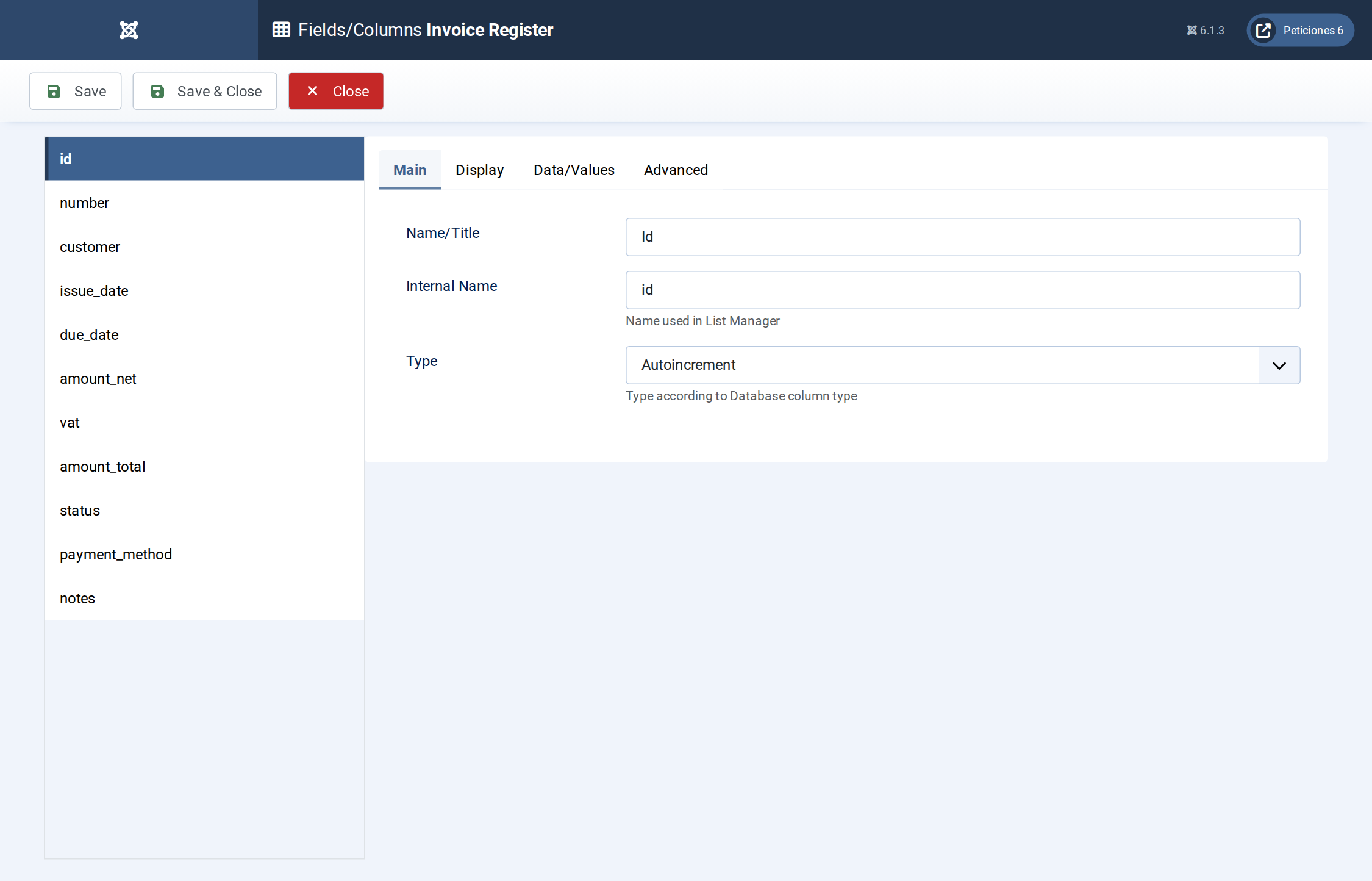
Fields/Columns: invoice number, customer, dates, decimal amounts with totals, option lists and notes.
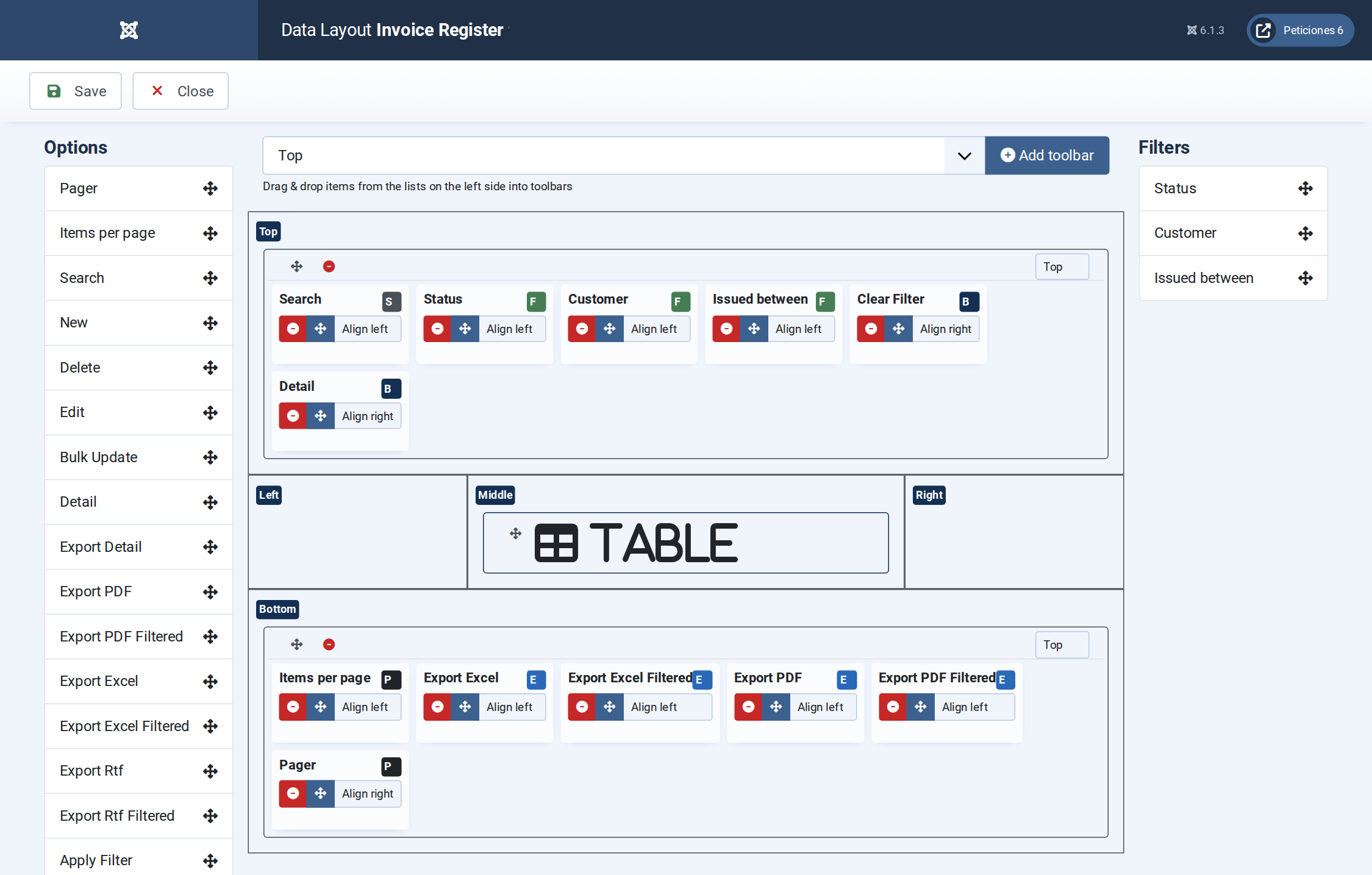
Display › Data Layout: table layout, formats and the default order (issue date, newest first).
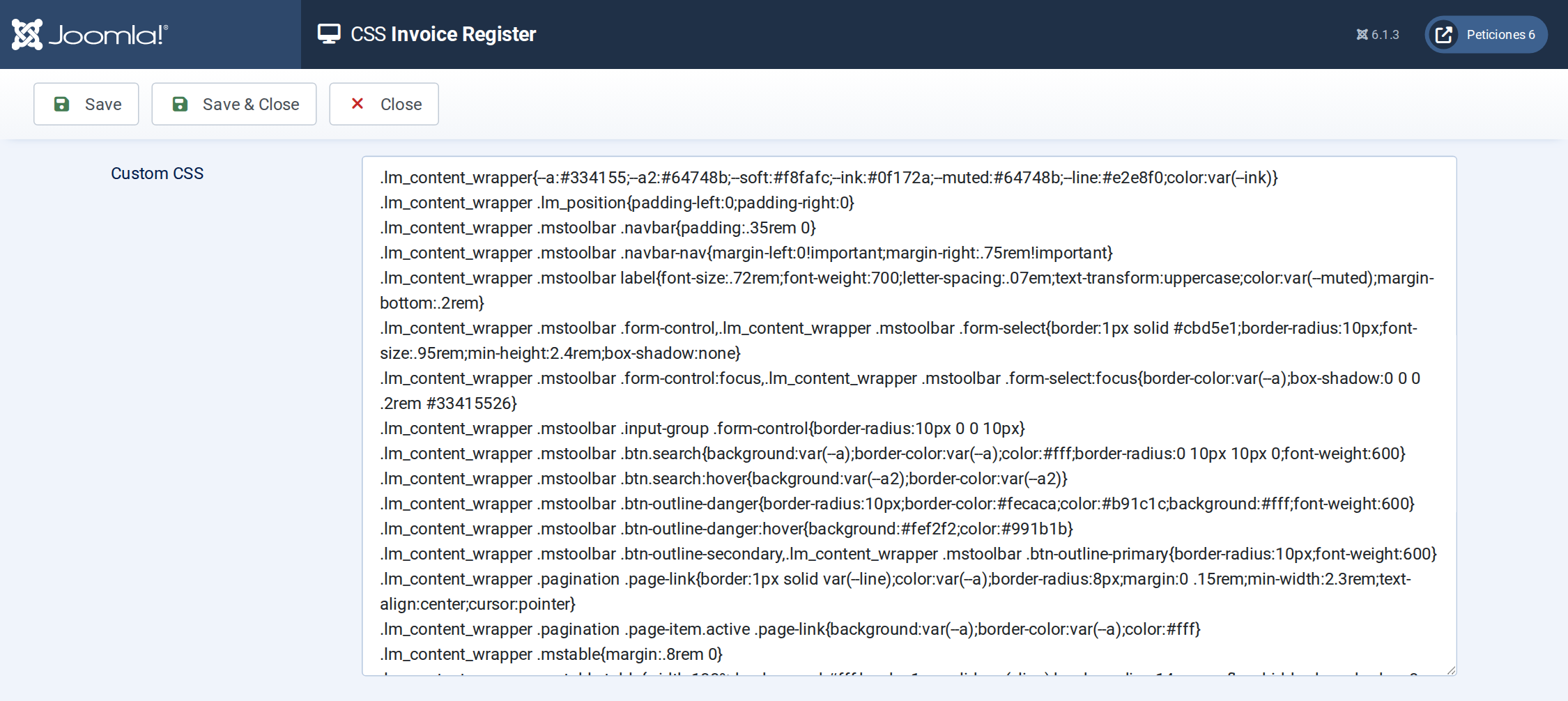
The CSS screen holds the column widths, the totals row, the status badges, the phone layout and the invoice pop-up.
Want this exact example on your own site?
- Create the table. Run the SQL file in phpMyAdmin (or the mysql client) on your Joomla database. It creates the sample table with its data (the table name has no Joomla prefix and is replaced if it already exists).
- Import the configuration. In your Joomla admin open Components › List Manager › Import and upload the configuration file — it is the same file the component's own Export Configuration button produces.
- Publish it. Create a menu item of type List Manager and select the imported list.